
Contact Us
Mary Graydon Student Center, Room 319 on a map
Student Center 4400 Massachusetts Avenue NW Washington, DC 20016-8113 United StatesThe EMS WebApp is American University's central system for requesting space and scheduling events. It is integrated with AU's Master Calendar and Ellucian Colleague, providing up-to-date information about scheduled activities on campus.
Everyone can use the EMS WebApp to:
• view space information and availability.
Only staff/faculty and approved students can use the EMS WebApp to:
• Submit requests to reserve space
• Modify or cancel reservations
• Reserve eligible office conference rooms
Quick Guides:

Quick Links



The Basics
🔍 Browse Space Information & Availability
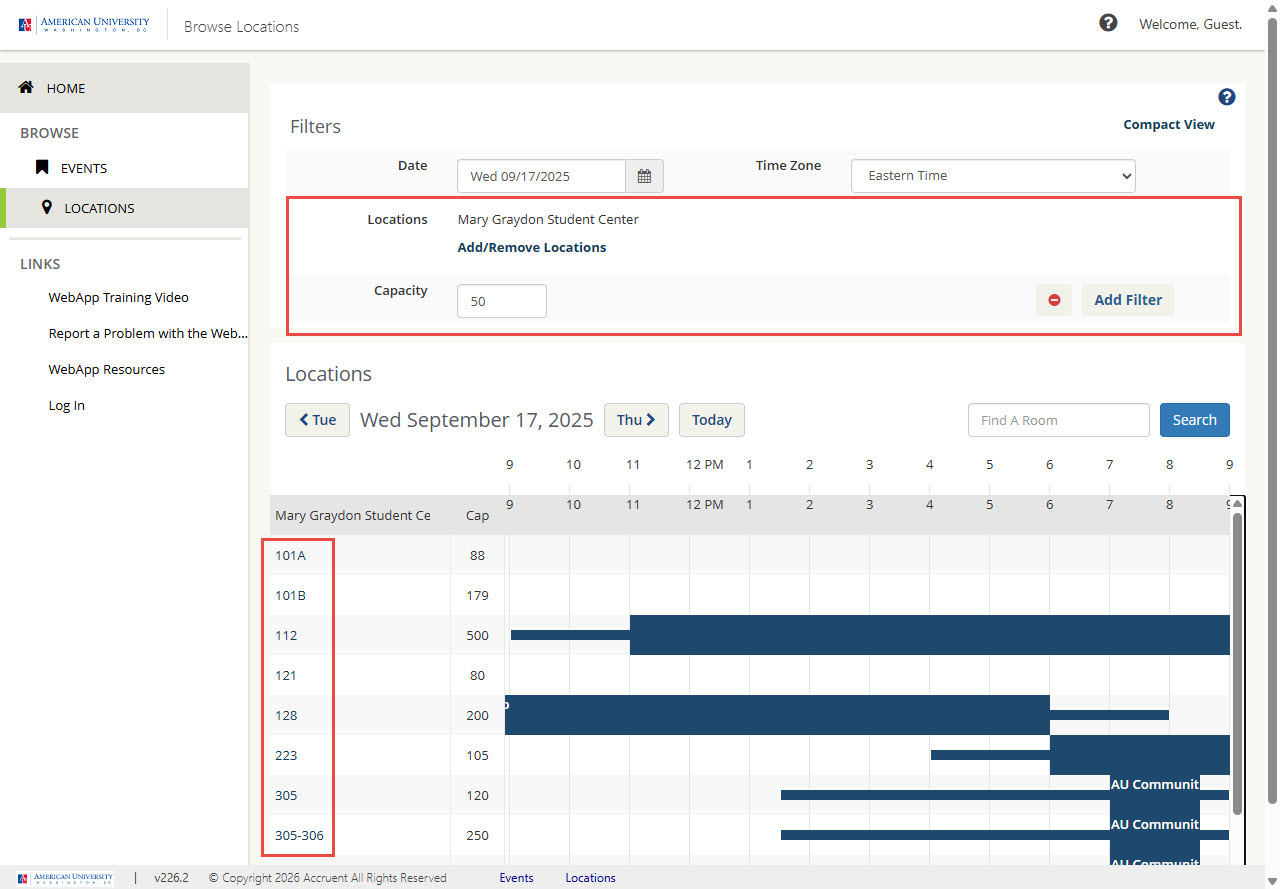 Use Browse > Locations to view campus spaces, learn about a room, and check when it is available.
- Go to EMS WebbApp
- From the left navigation menu, select Browse > Locations.
- The Browse Locations page displays rooms in an availability grid (daily view).
- You can narrow the location search with:
- Add/Remove Locations to narrow by buildings or areas you want to view.
- Add Filter to narrow by:
- Building Floor
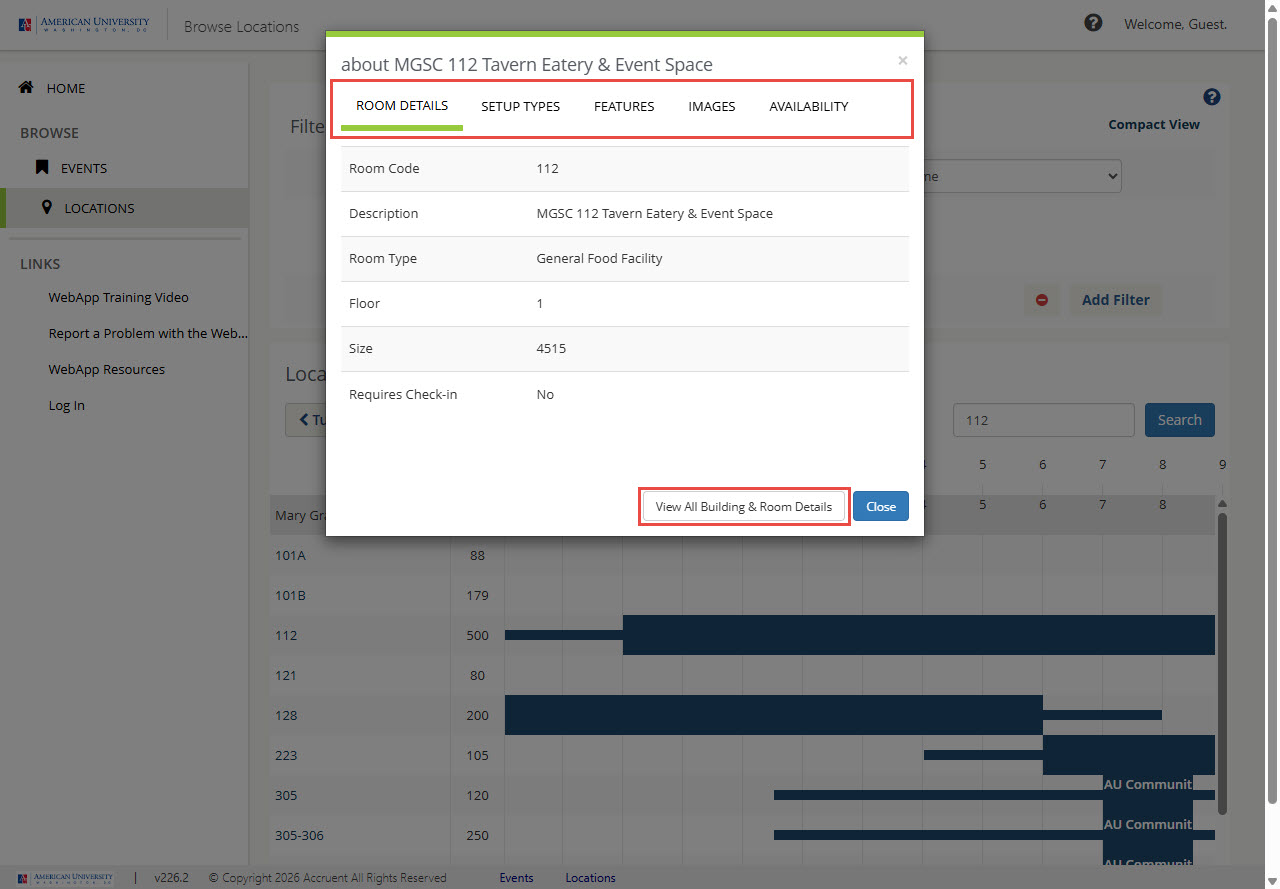
- Room Capacity
- Room Features
- Room Type
- Room Setup Type
- Building Floor
- Click on a room name to view basic room details:
- Room Description and Type
- Setup Types
- Features
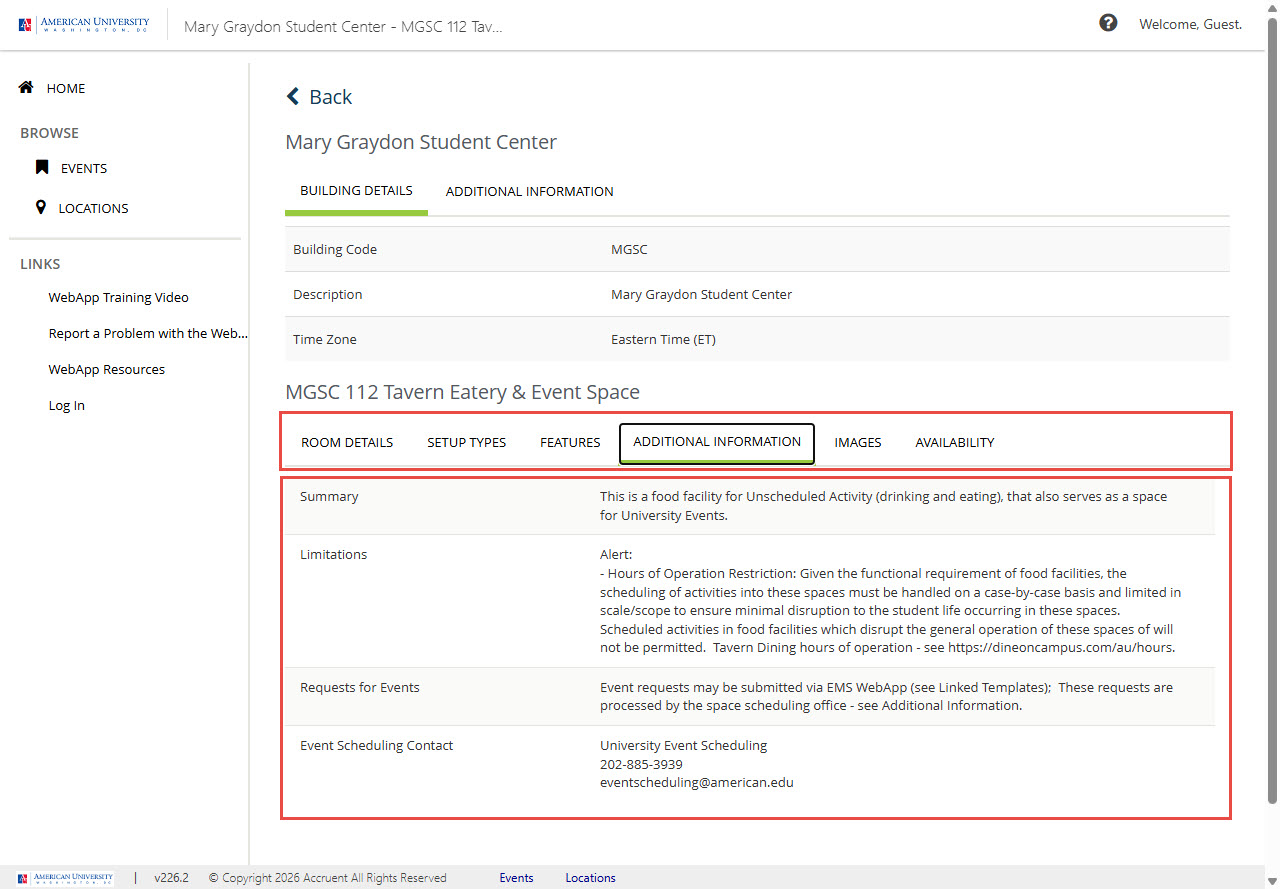
- Images
- Availability
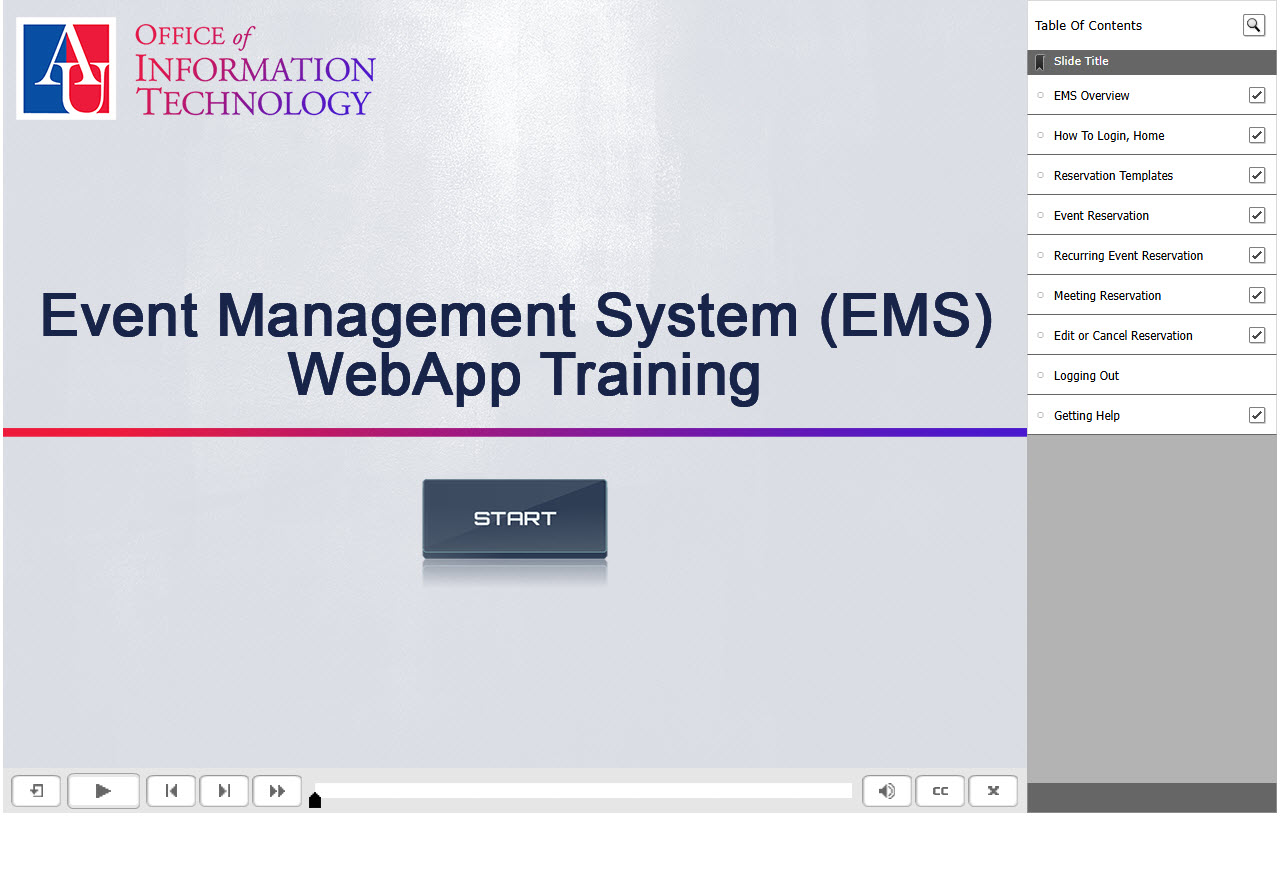
- From this room details window, select View All Building & Room Details for additional information, including:
- Photos or floor plans (when available)
- Reservation information
Space Reservations
The following guides are for EMS users who have "WebApp Requestor" access.
Creating Space Reservations
🎯 Selecting the Correct Reservation Template
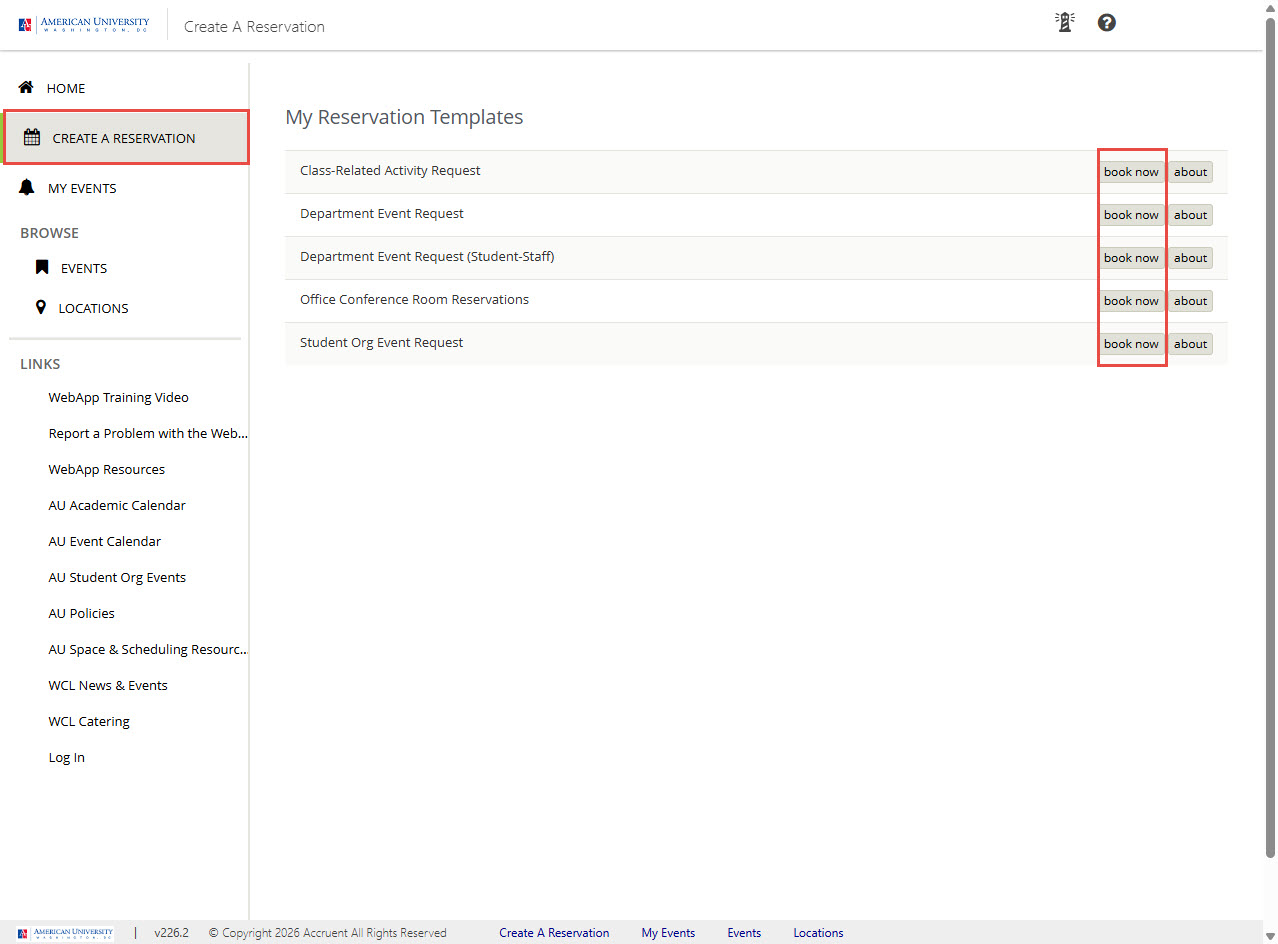 ℹ️ The templates available to you depend on your role. Are you submitting a request for...
Recognized Student Organization
Note: Limit one designated EMS Event Requestor per Recognized Student Organization.
- Activity Type
- Reservation Template
- Event
- Student Org Event Request
AU Department or Office
Activity Type
Reservation Template- Event
- Department Event Request
Department Event Request (Student-Staff) - Class-Related Activity
- Class-Related Activity Request
- Office Conference
Room Reservation - Office Conference Room Reservations
Find the reservation form that matches who you are and what you're planning, then click Book Now.
📝 Submitting a Reservation Template
Before You Begin
To submit an event request, you'll need permission to reserve space in the EMS WebApp. If you don't have access, request WebApp access before proceeding.
I. Sign In & Choose a Reservation Template
1. Go to https://american.emscloudservice.com/web/
2. Sign in using your MyAU username and password.
3. From the main menu, select Create a Reservation.
4. Select the reservation form that best matches your event, then click Book Now.
(See "Selecting the Correct Reservation Template" guide for assistance with this step.)
II. Select a Date, Time, and Location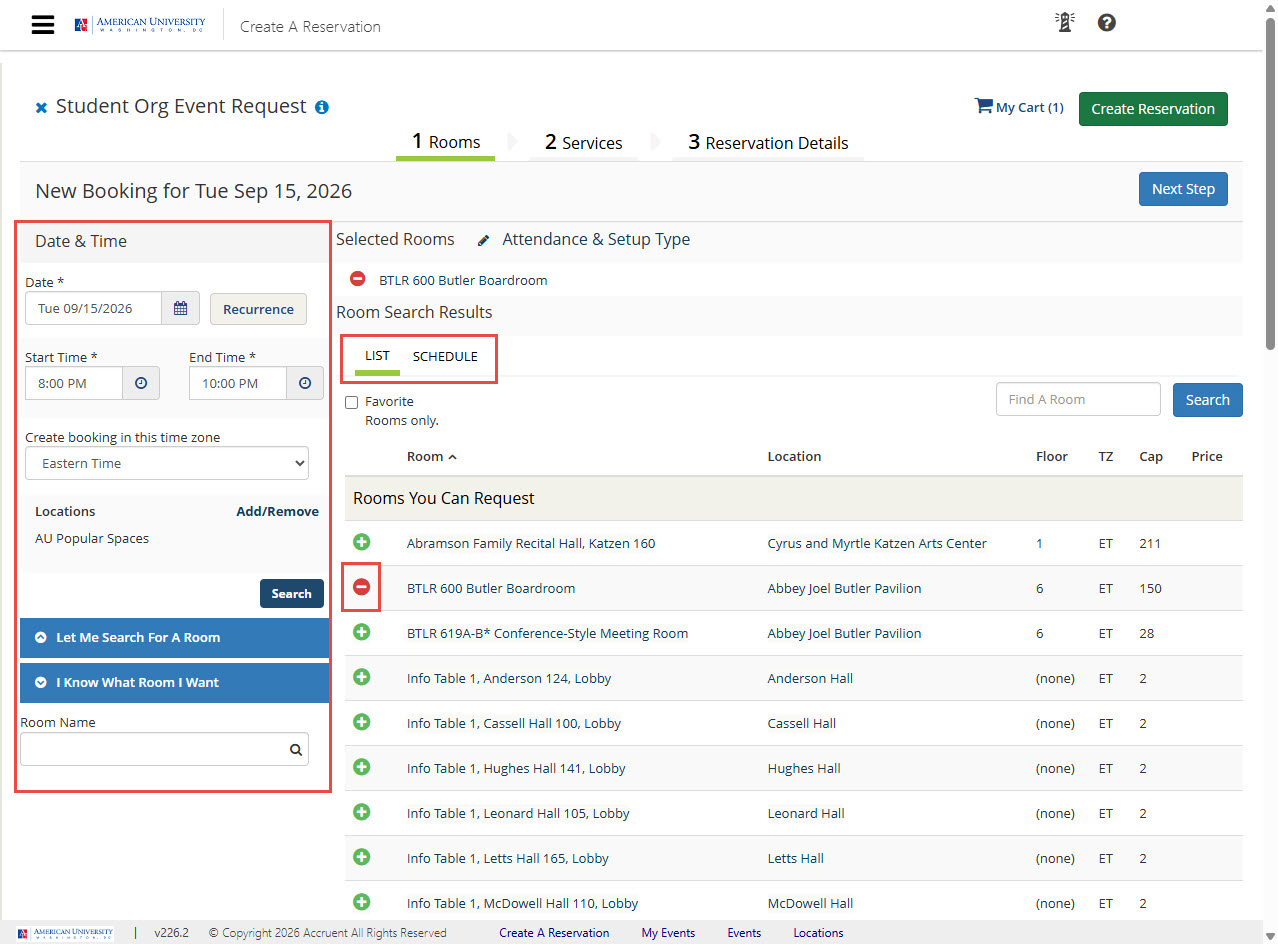
1. Select the event date.
• For recurring events: click Recurrence, select additional dates and times, and click Apply Recurrence to save.*
2. Enter the start time and end time.
3. Under Locations, click Search to find available spaces.**
• To adjust your location search: click Add/Remove, choose specific buildings or location groups, and click Update Locations.
4. Click + to add the location you want.
5. Enter the expected attendance.
6. Select the appropriate Setup Type.
7. Click Add Room.
* You can apply daily, weekly, monthly and random random recurring dates. We recommend using Random recurrence to select specific dates and avoid university holidays and breaks.
** Location search results display in two formats:
1. List (default) — Displays only the available rooms in a List. Sort rooms by building, room name, capacity, and more.
2. Schedule — Displays all rooms that meet your search criteria in an availability grid. View room availability.
III. Select Event Services
If services are available for your selected location (such as audiovisual support or other event services), you can request them on the Services page.
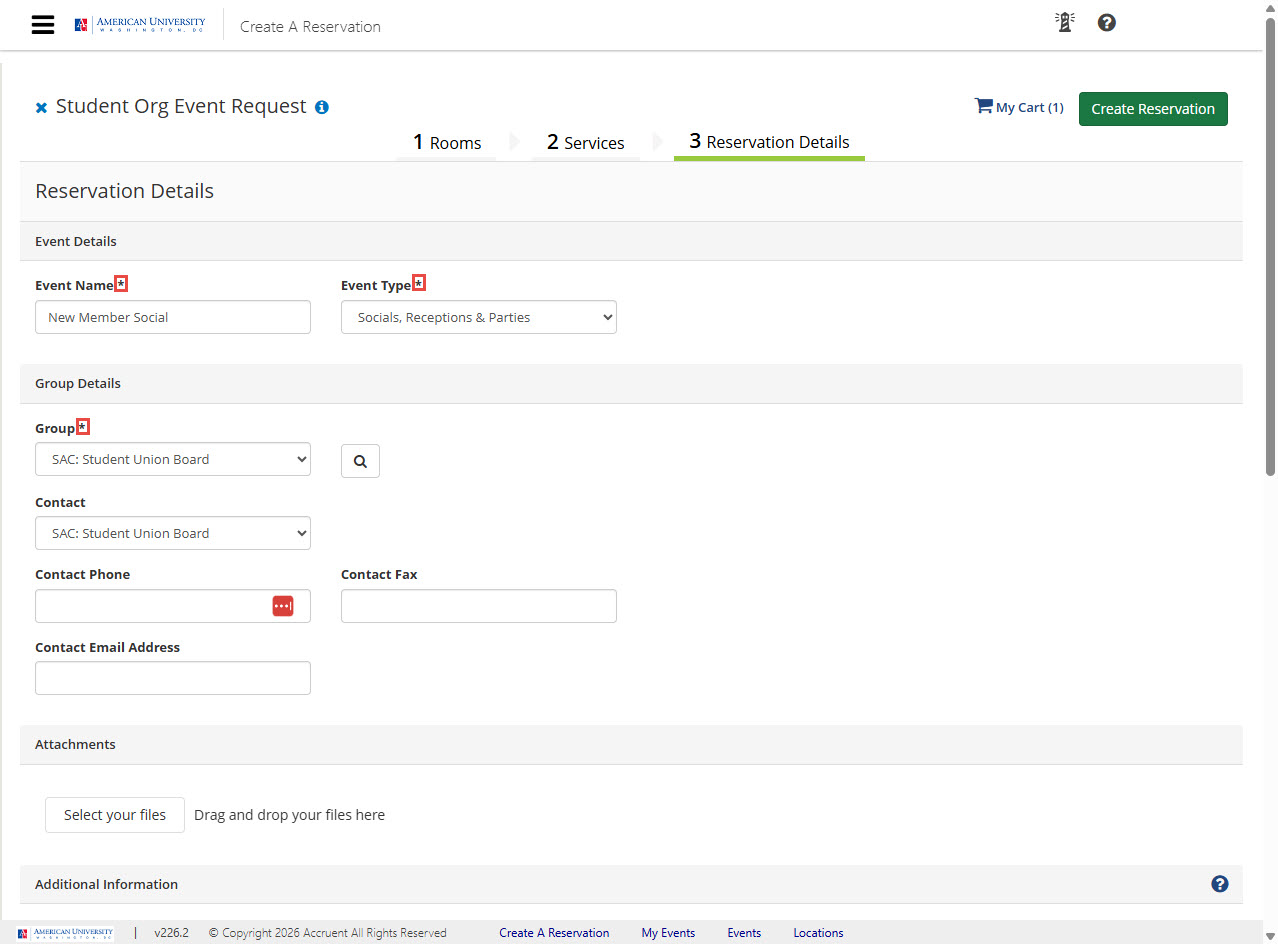 IV. Complete the Reservation Details
Provide the required information about your event.
1. Event Name
2. Event Type
3. Hosting Group (select from the dropdown or search using the magnifying glass icon)
4. Event Description (marketing-style description for the AU calendar, if applicable)
5. Complete any additional fields required for your reservation form - these vary by reservation template, for example:
• Event Instructions & Logistics (special requirements, accommodations, equipment, etc.)
• Academic Scheduling Requirements
6. If applicable, complete optional fields:
• Add an additional event contact.
• Choose whether to publish your event to the AU Calendar.
V. Submit the Template
1. Review your information.
2. Check the Terms and Conditions box.
3. Click Create Reservation.
What next?
Depending on the form, the template will either route a request to a scheduler for processing, or hold the space as a formal resevation. To learn more, read the quick guide for the reservation template you've submitted.
Managing Space Reservations (by type)
✨ Events
The changes you can make depend on the status of your reservation:
- Status Type
- Permitted Actions
- Draft Statuses
- • Edit reservation details, such as the event name, description, and AU Calendar information.
• Edit booking setup type and attendance (setup count).
• Edit booking date, time and location
• Cancel individual bookings or the whole reservation. - Tentative and
Confirmed Statuses - • Edit reservation details, such as the event name, description, and AU Calendar information.
• Cancel individual bookings or the whole reservation. - (✉️ Contact the location scheduler to edit the booking setup type, attendance (setup count), date, time or location.)
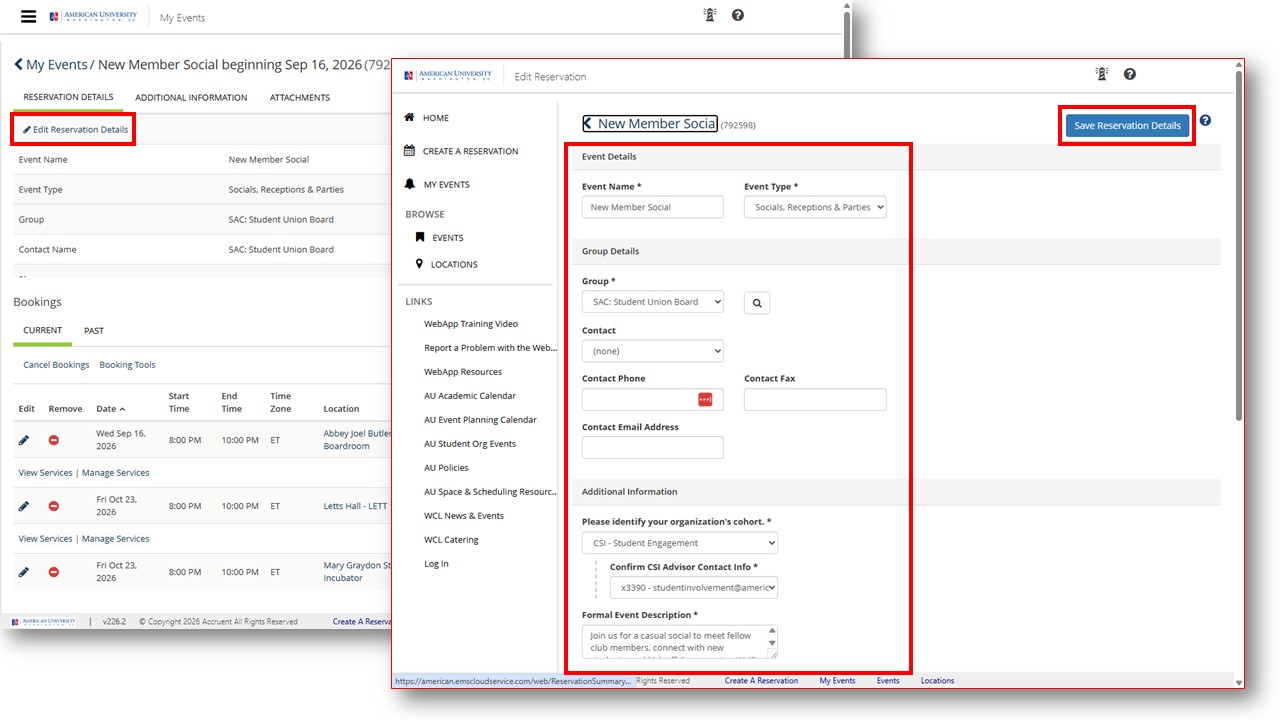 Edit Reservation Details
1. Sign in to the EMS WebApp.
2. From the left menu, select My Events.
3. Click on the name of the reservation you want to edit.
4. Under the Reservation Details tab, click 🖉 Edit Reservation Details to modify:
• Reservation Event Name and Type
• Group
• Contact
• Formal Event Description
• Event Instructions and Logistics
• AU Calendar (optional)
• Any other reservation detail field associated with this template.
5. Click Save Reservation Details.
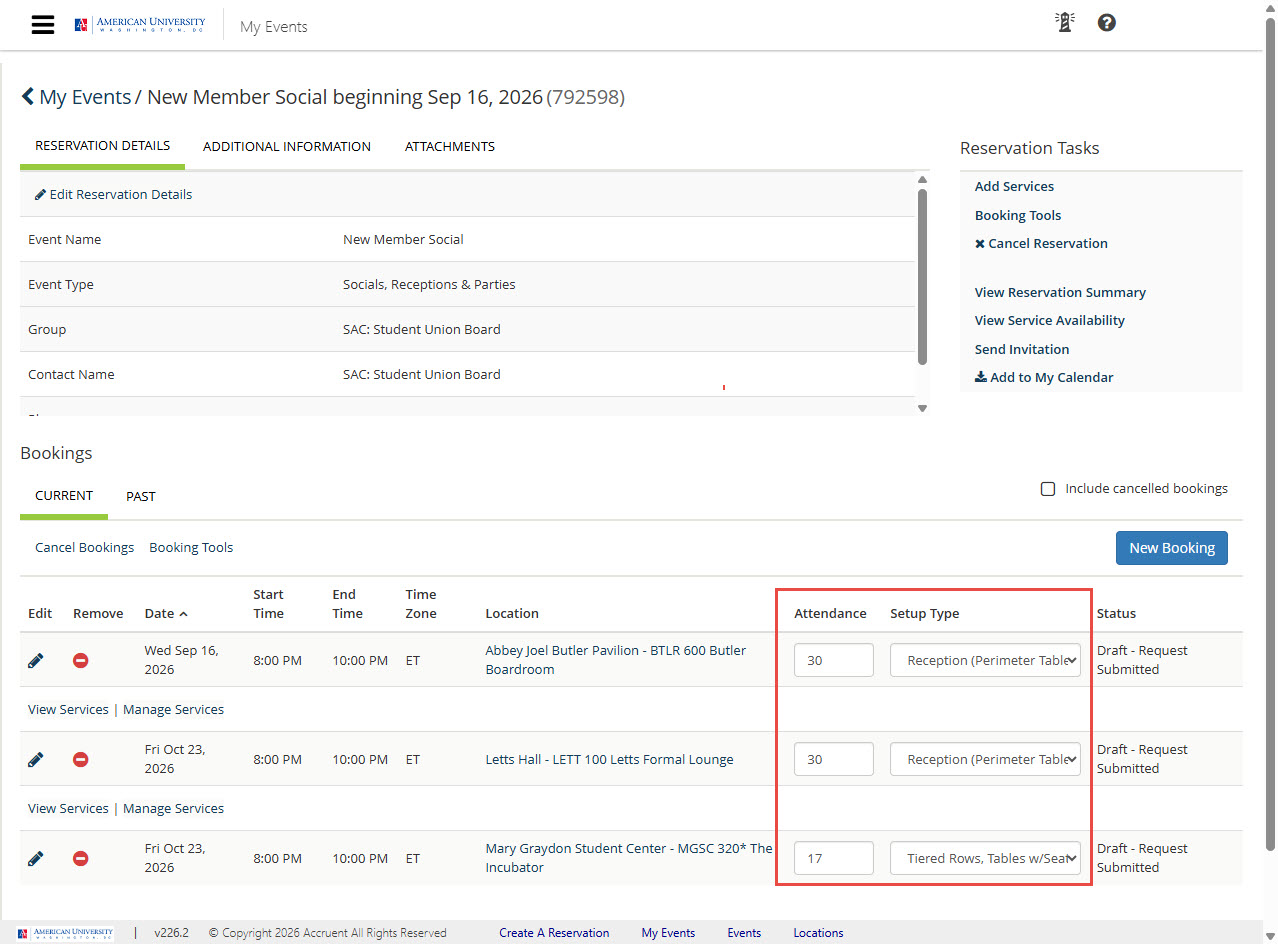 Edit Booking - Attendance and Setup Type
1. Sign in to the EMS WebApp.
2. From the left menu, select My Events.
3. Click on the name of the reservation you want to edit.
4. Scroll down to the Bookings section
From here you can edit Location Details:
• Attendance (i.e. seat count)
• Location Setup Type
Edit Booking - Date, Time and Location
1. Sign in to the EMS WebApp.
2. From the left menu, select My Events.
3. Click on the name of the reservation you want to edit.
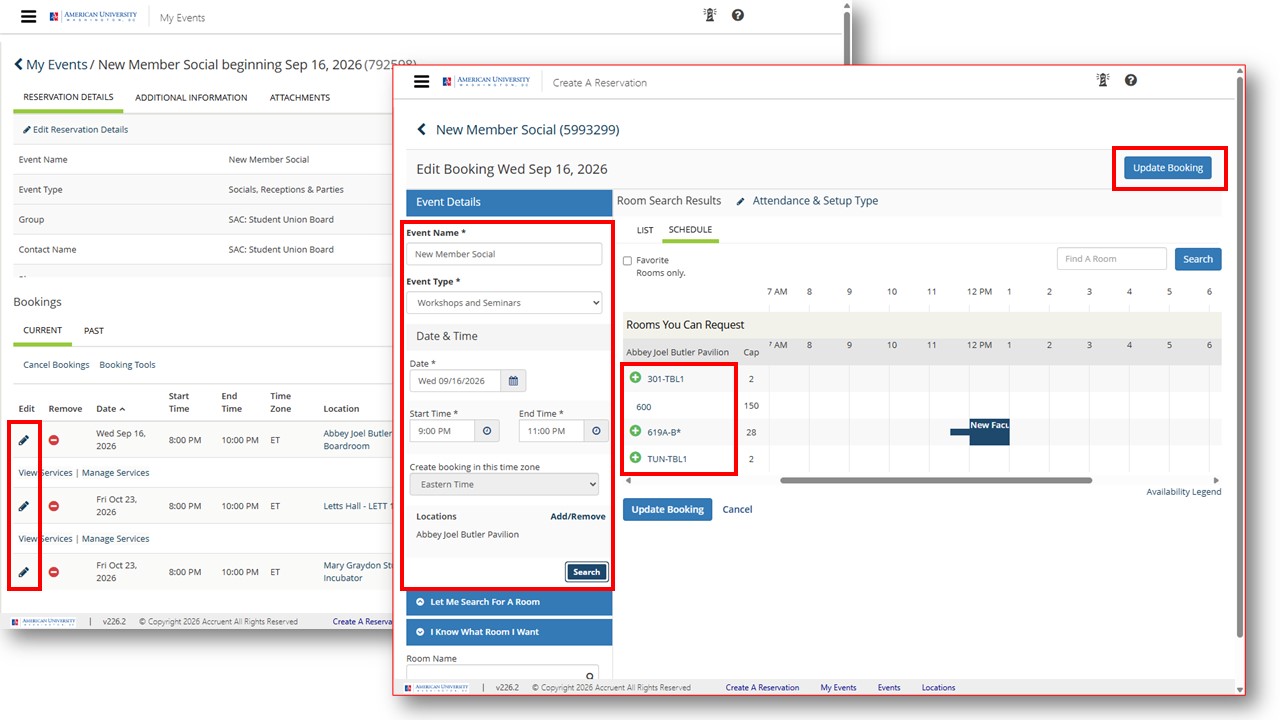 Option 1: Edit from Booking Editor (Recommended)
This method lets you immediately check room availability while making your changes, making it easier to confirm availability for your new date, time or location.
4. Scroll to the Bookings section
5. Click the 🖉 Edit icon of the booking you want to update.
6. The Room Request window opens. Here you can:
• Change date or time
• Click Search to verify that your current room is available for the new date and time.
• If the room is unavailable or you'd like a different space, select a new location.
7. Click Update Booking to save your changes
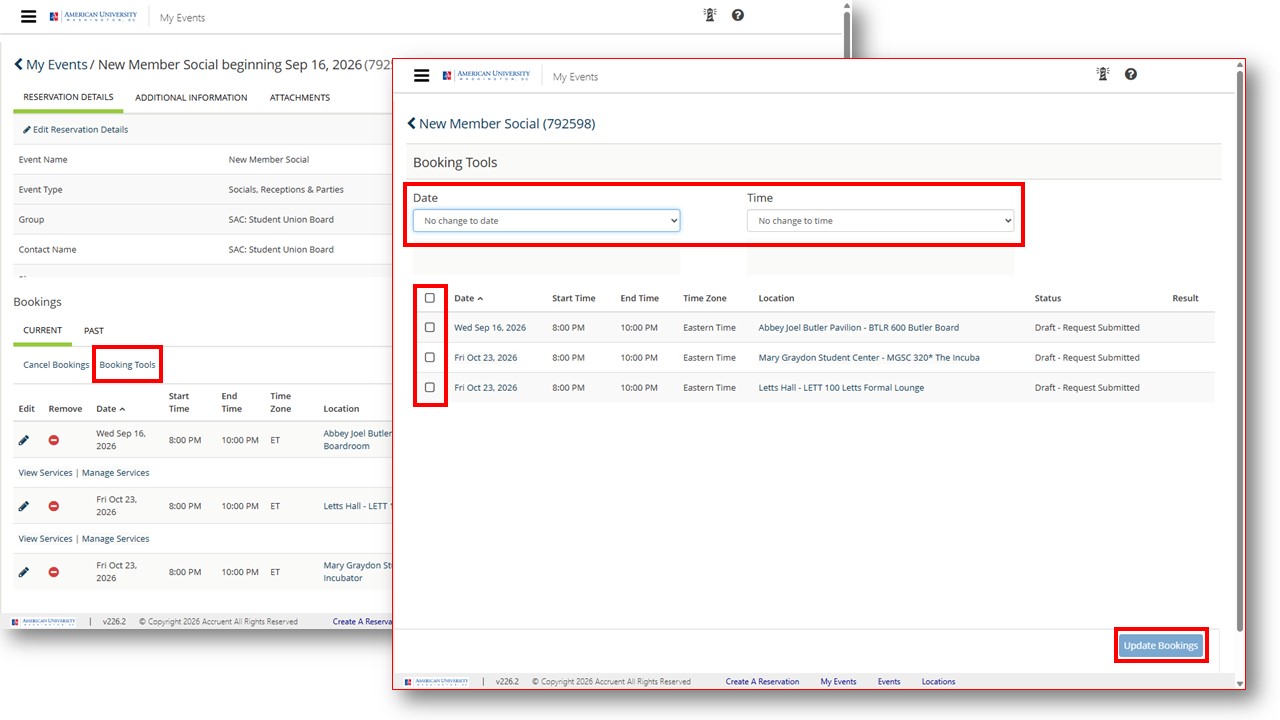 Option 2: Use Booking Tools
Use Booking Tools when you need to change the date or time for one or more bookings at the same time.
4. Scroll to the Bookings section.
5. Click Booking Tools.
6. Check the box (🗹) next to the booking (or bookings) you want to update.
7. Choose the appropriate option from the Date and/or Time drop-down menus.
8. Click Update Bookings.
Note: Booking Tools does not display room availability while you make changes. If you're unsure whether the room is available for the new date or time, use Option 1 instead.
Cancel Reservation or Individual Booking(s)
1. Sign in to the EMS WebApp.
2. From the left menu, select My Events.
3. Click on the name of the reservation you want to edit.
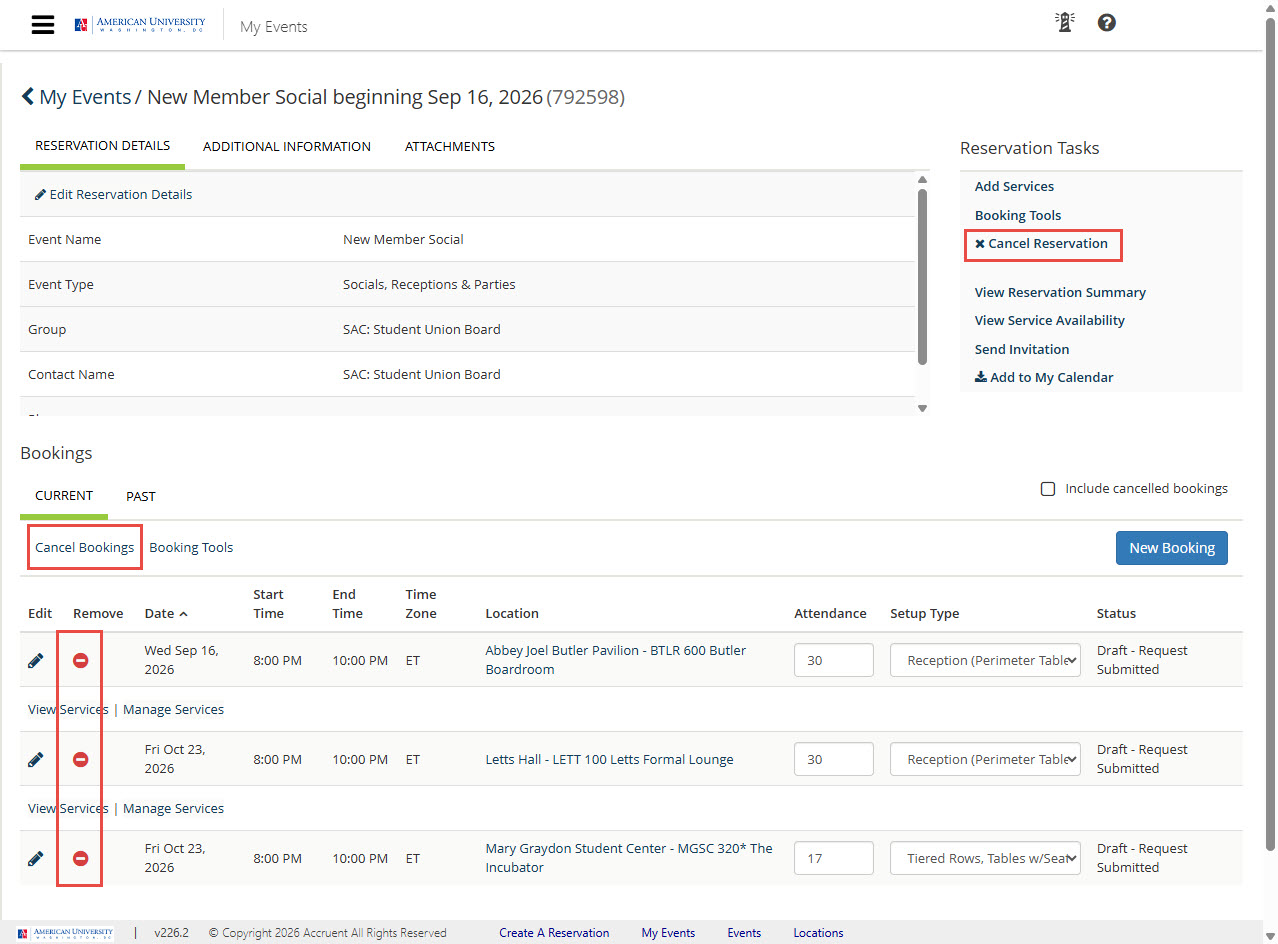 To cancel the entire reservation:
Canceling a reservation also cancels all bookings associated with that reservation.
4. Under Reservation Tools, click Cancel Reservation.
5. Select a Cancel Reason.
6. (Optional) Enter Cancel Notes to provide additional information.
7. Click Yes, Cancel Reservation to confirm.
The reservation and all associated bookings will be canceled.
To cancel one or more bookings:
If your reservation contains multiple bookings, you may be able to cancel individual bookings without canceling the entire reservation.
4. Scroll to the Bookings section.
5. Click the ➖ Remove icon (or click the booking date) for the booking you want to cancel.
6. Select a Cancel Reason.
7. (Optional) Enter Cancel Notes to provide additional information.
8. Click Yes, Cancel Booking (or the confirmation button displayed) to confirm.
Only the selected booking(s) will be canceled.
💡 If your reservation has already been approved or event services have been arranged, cancel your reservation as soon as possible so the space can be made available for others.
📖 Class-Related Activities
Class-Related Activity Requests immediately place a hold on the requested space and are routed to Academic Scheduling in the Office of the University Registrar for review.
You can use the EMS WebApp to:
• Edit reservation details, such as the event name, description, and AU Calendar information.
• Cancel individual bookings or the entire reservation.
Contact Academic Scheduling ([email protected]) to:
• To change the date, time, location, setup type, or attendance.
Edit Reservation Details
1. Sign in to the EMS WebApp.
2. From the left menu, select My Events.
3. Click on the name of the reservation you want to edit.
4. Under the Reservation Details tab, click 🖉 Edit Reservation Details to modify:
• Reservation Event Name and Type
• Group
• Contact
• Formal Event Description
• Event Instructions and Logistics
• AU Calendar (optional)
• Any other reservation detail field associated with this template.
5. Click Save Reservation Details.
Cancel Reservation or Individual Booking(s)
1. Sign in to the EMS WebApp.
2. From the left menu, select My Events.
3. Click on the name of the reservation you want to edit.
To cancel the entire reservation
Canceling a reservation also cancels all bookings associated with that reservation.
4. Under Reservation Tools, click Cancel Reservation.
5. Select a Cancel Reason.
6. (Optional) Enter Cancel Notes to provide additional information.
7. Click Yes, Cancel Reservation to confirm.
The reservation and all associated bookings will be canceled.
To cancel one or more bookings
If your reservation contains multiple bookings, you may be able to cancel individual bookings without canceling the entire reservation.
4. Scroll to the Bookings section.
5. Click the ➖ Remove icon (or click the booking date) for the booking you want to cancel.
6. Select a Cancel Reason.
7. (Optional) Enter Cancel Notes to provide additional information.
8. Click Yes, Cancel Booking (or the confirmation button displayed) to confirm.
Only the selected booking(s) will be canceled.
🚪 Office Conference Room Reservations
Office Conference Room Reservations immediately place a hold on the requested space.
You can use the EMS WebApp to:
• Edit reservation details, such as the event name, description, and AU Calendar information.
• Add new booking(s) to the reservation.
• Cancel individual bookings or the entire reservation.
Contact University Event Scheduling ([email protected]) to:
• To modify the start time or end time of a booking. (Or you may use EMS to cancel the booking and replace it with a new booking for the modified start/end time.)
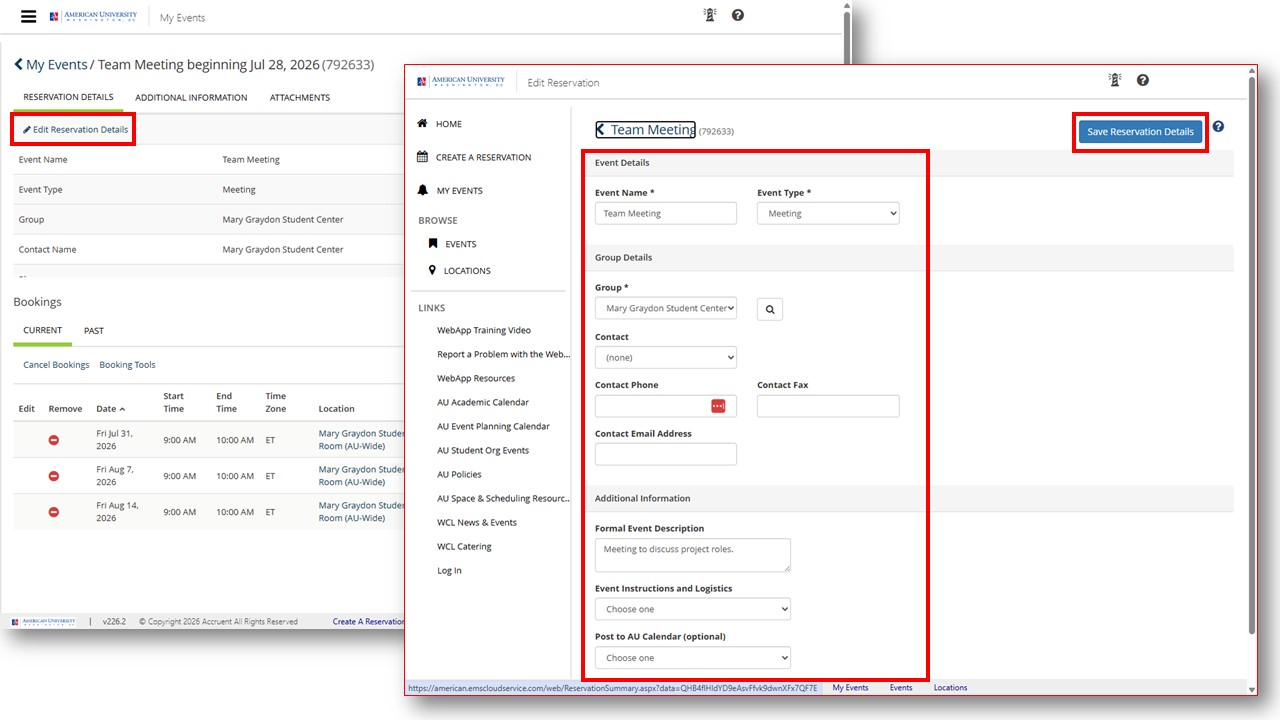 Edit Reservation Details
1. Sign in to the EMS WebApp.
2. From the left menu, select My Events.
3. Click on the name of the reservation you want to edit.
4. Under the Reservation Details tab, click 🖉 Edit Reservation Details to modify:
• Reservation Event Name and Type
• Group
• Contact
• Formal Event Description
• Event Instructions and Logistics
• AU Calendar (optional)
• Any other reservation detail field associated with this template.
5. Click Save Reservation Details.
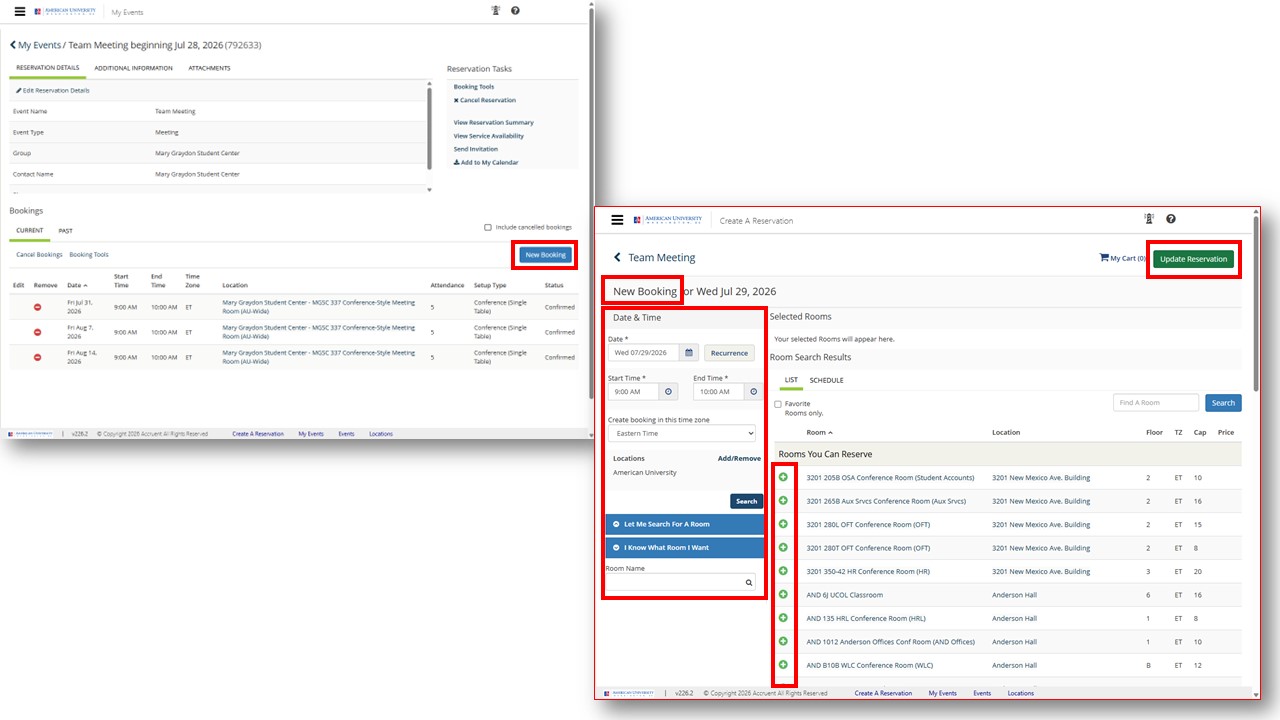 Add Booking(s)
1. Sign in to the EMS WebApp.
2. From the left menu, select My Events.
3. Click on the name of the reservation you want to edit.
4. Scroll down to the Bookings section
5. Click New Booking button, on the right.
6. The New Booking window opens.
• Enter the date(s) (Click Recurrence to add multiple dates.)
• Enter the start time and end time.
7. Under Locations, click Search to find available spaces.*
8. Click + to add the location** you want.
9. Enter the expected attendance.
10. Select the appropriate Setup Type.
11. Click Add Room.
12. Click Update Reservation.
* Locations Search results display in two ways:
• List (default) — Displays only the available rooms in a List. Sort rooms by building, room name, capacity, and more.
• Schedule — Displays all rooms that meet your search criteria in an availbility grid. View room availability.
** Keep in mind, office-specific conference rooms are limited to the staff/faculty within that office. These spaces include the responsible office name in the room name, for example: MGSC 456 Economics Conference Room (Economics).
Cancel Reservation or Individual Booking(s)
1. Sign in to the EMS WebApp.
2. From the left menu, select My Events.
3. Click on the name of the reservation you want to edit.
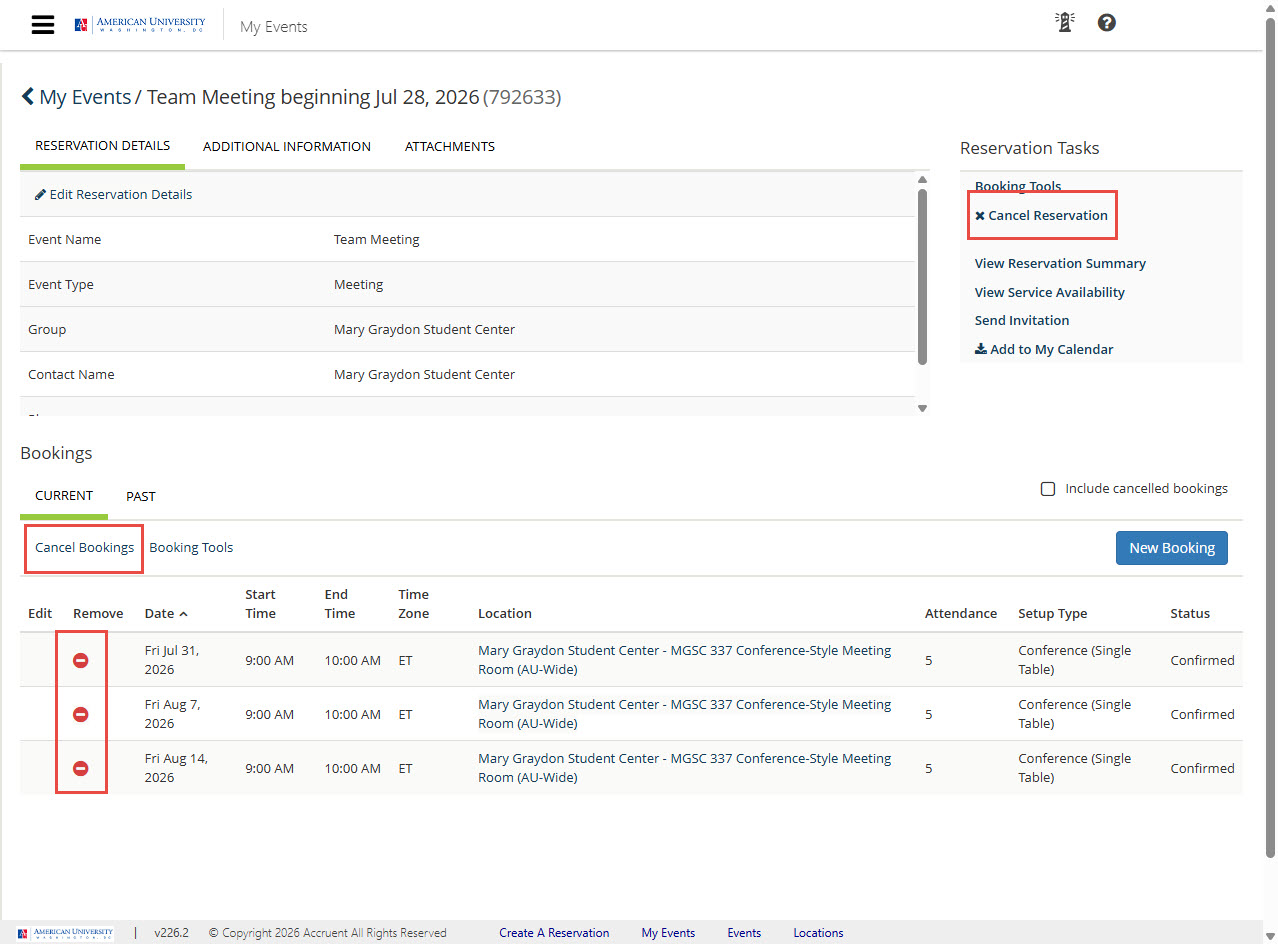 To cancel the entire reservation
Canceling a reservation also cancels all bookings associated with that reservation.
4. Under Reservation Tools, click Cancel Reservation.
5. Select a Cancel Reason.
6. (Optional) Enter Cancel Notes to provide additional information.
7. Click Yes, Cancel Reservation to confirm.
The reservation and all associated bookings will be canceled.
To cancel one or more bookings
If your reservation contains multiple bookings, you may be able to cancel individual bookings without canceling the entire reservation.
4. Scroll to the Bookings section.
5. Click the ➖ Remove icon (or click the booking date) for the booking you want to cancel.
6. Select a Cancel Reason.
7. (Optional) Enter Cancel Notes to provide additional information.
8. Click Yes, Cancel Booking (or the confirmation button displayed) to confirm.
Only the selected booking(s) will be canceled.
💡 If your reservation has already been approved or event services have been arranged, cancel your reservation as soon as possible so the space can be made available for others.
Requestor Access
Everyone can use the EMS WebApp to view space information and availability.
Click the sections below to learn about WebApp Requestor access for each user group.
🏢 AU Departments (Faculty & Staff)
AU faculty and staff automatically receive EMS WebApp Requestor accounts and may:
• Submit event requests
• Schedule class-related activities
• Reserve eligible office conference rooms
👉 AU student employees may also receive Requestor access when approved by their supervisor to reserve space as part of their work responsibilities. Need Requestor access? Submit a WebApp Requestor Access Form.
🆘 Unable to log in? Submit a WebApp Access Support Ticket.
👥 AU Recognized Student Organizations (AU Students)
Each recognized student organization may designate one student as its EMS WebApp Requestor.
This student may:
• Submit event requests on behalf of the organization
📝 Need to become your organization's designated Requestor? Submit a WebApp Requestor Access Form.
⚖️ Washington College of Law (Faculty, Staff & Students)
The Washington College of Law uses different scheduling processes and reservation templates than the main campus.
WCL Faculty/Staff
WCL faculty and staff automatically receive EMS WebApp Requestor accounts and may reserve space using the WCL Faculty/Staff Request reservation template.
WCL Students
WCL students automatically receive EMS WebApp Requestor accounts and may reserve space using the WCL Student Request reservation template.
ℹ️ Student activity requests may be submitted beginning the third week of classes through the last day of classes. Requests outside this period cannot be submitted through the EMS WebApp.
🆘 Unable to log in? Submit a WebApp Access Support Ticket.